 Switchyard
Every agent you're running, on one board.
The desktop app is where sessions start, where you watch them, and where their work gets read before it goes anywhere. It's a small Rust daemon and a native window, not a browser in a box.
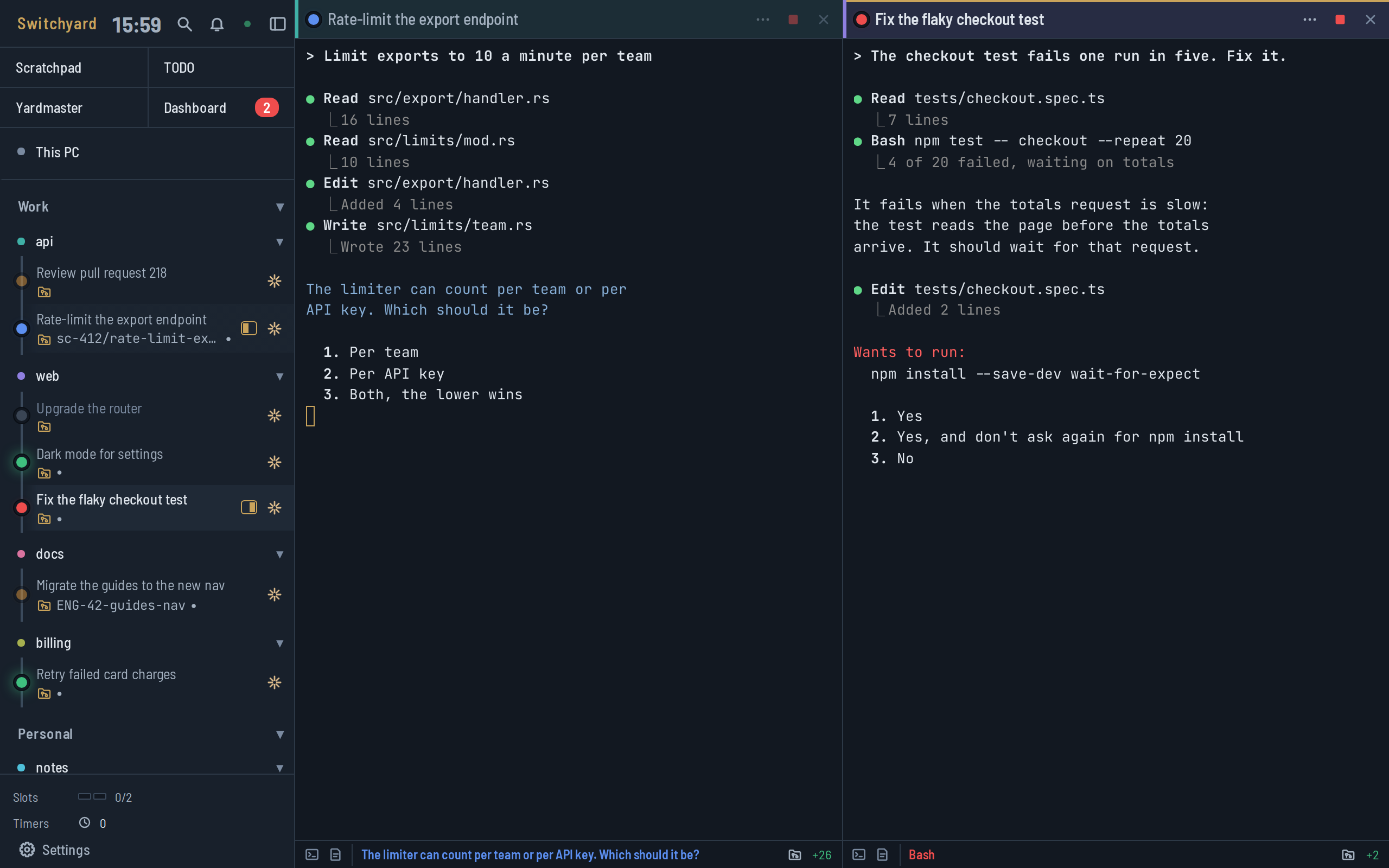
Seven lamps, and you know where everything stands
The lamp is the same dot in the sidebar, on a session's bar and on the dashboard. It's set by the agents' own lifecycle hooks, so it's right even when the terminal is off screen.
- HollowStarting
- WhiteReady, no prompt yet
- AmberWorking
- RedNeeds your permission
- BlueAsked you a question
- GreenDone, waiting for your next prompt
- UnlitExited, and resumable
A lamp with a halo changed while you weren't looking at it.
The ones that need you rise
The sidebar and the switcher put sessions waiting on you first. A halo marks a lamp that changed while you were looking elsewhere.
Waiting on background work
A session whose turn ended with tasks still running shows a dimmed lamp with their count, and can be prompted meanwhile.
Waiting for a slot
A hollow amber ring means its build or test is queued behind someone else's. A square one means a hold is in place.
The agent's own terminal, untouched
A session is a real terminal running Claude Code or Codex exactly as you know them. Nothing is scraped from the screen and nothing is drawn over it.
- A bar and a status line on every pane: lamp, title, what it's doing, its pull request, its branch, its model. Neither changes height as the state does.
- Switch model or effort from the status line. Picking the other agent hands the session over to it.
- Your own shell in the session's folder with Ctrl `. It lives as long as the session does.
- Chat instead, if you prefer. Read and answer a session as a conversation, with the terminal running on underneath.
Up to four, side by side
A split holds two to four sessions from any projects. Keep as many splits as you like. Each remembers its shape and sizes across restarts.
- Ctrl click a session to open it beside the one you're looking at, or drag it onto a pane's edge.
- Each project has a colour down the edge of its panes, so two panes of one project look like it.
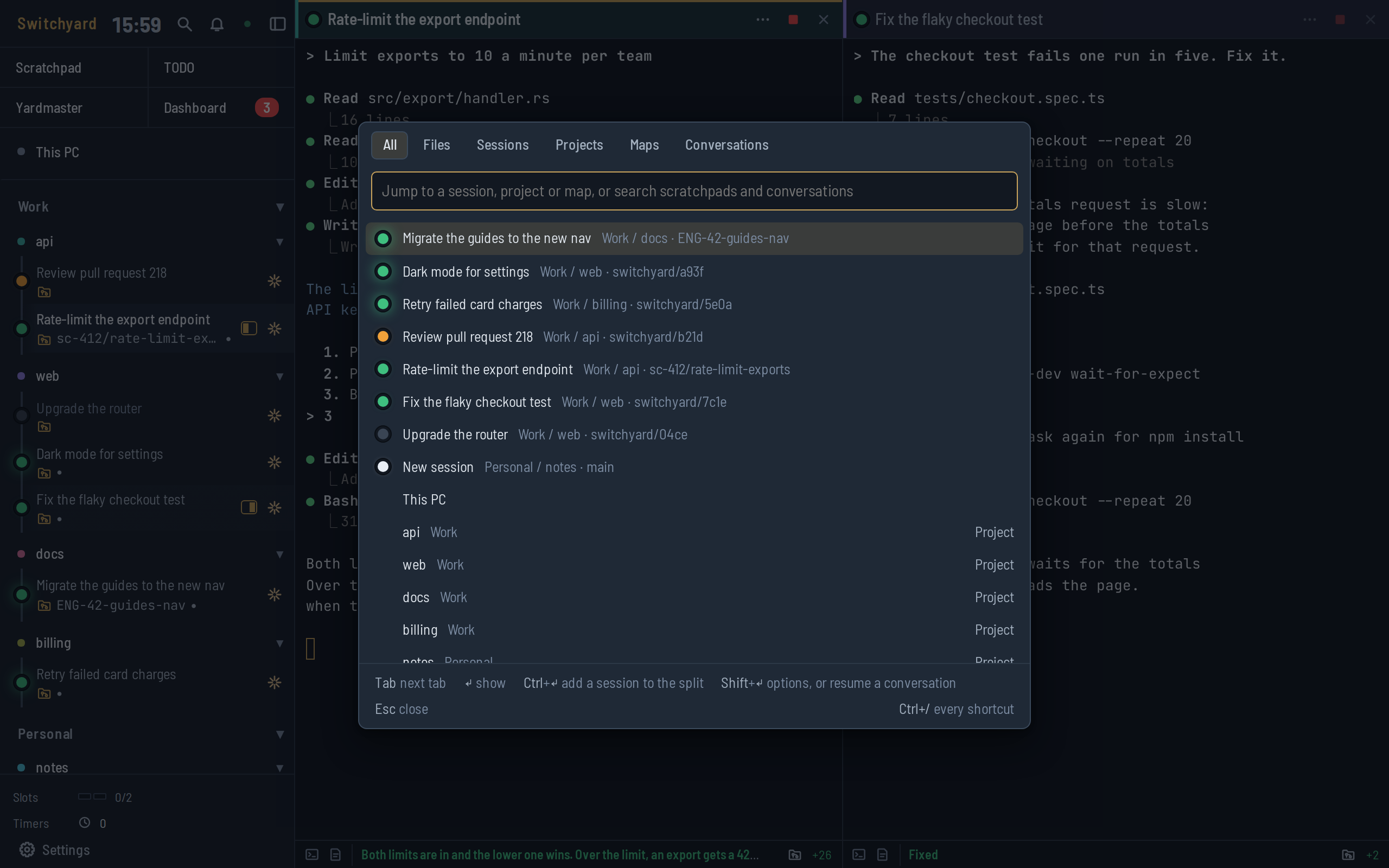
- Ctrl K opens the switcher: sessions, files, projects, maps and past conversations, with the ones that need you first.
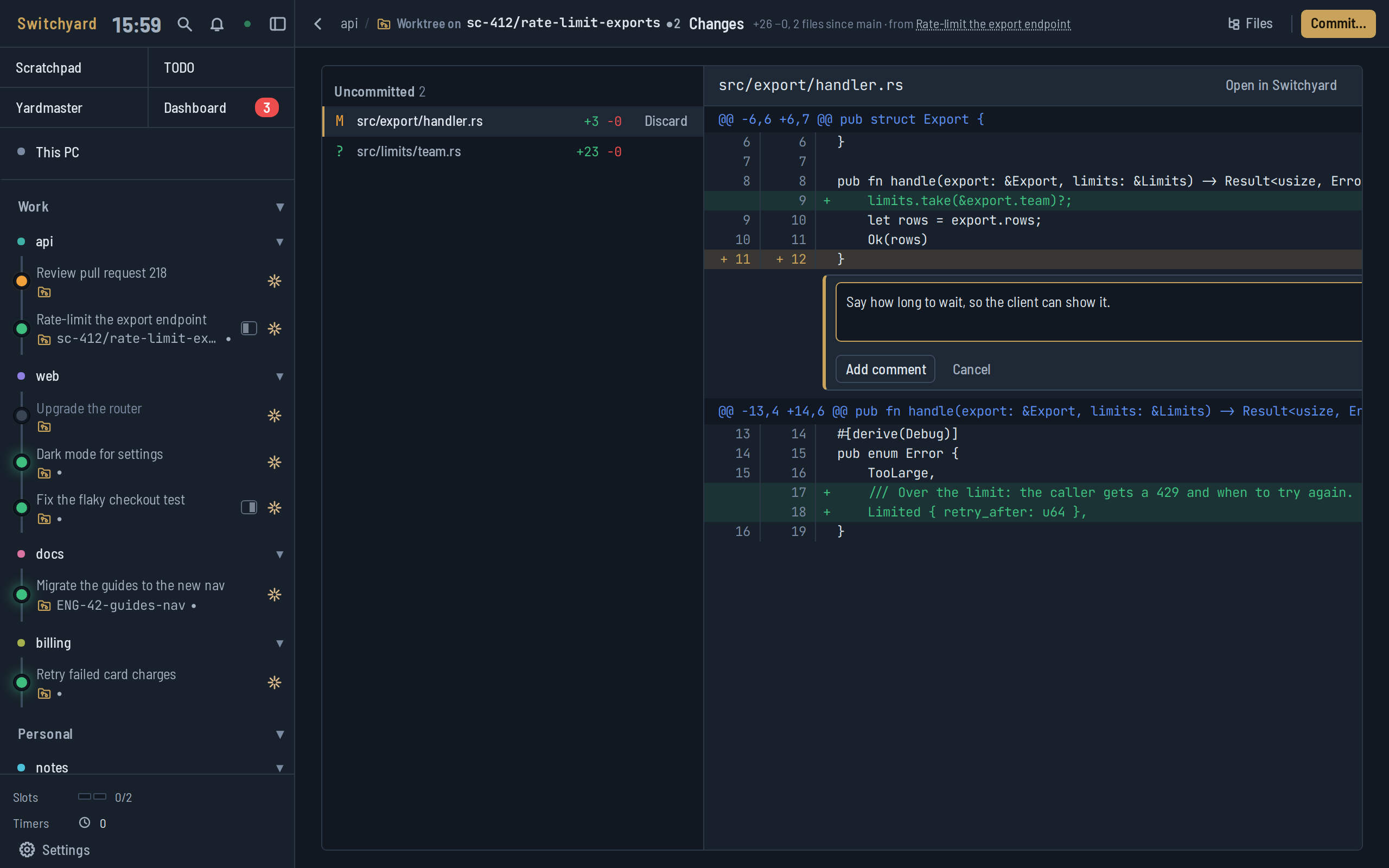
Read the change before it goes anywhere
Each session shows how much it changed, as +120 −34, 6 files. Click it for the Changes view: what's committed and what isn't, with the diff of the file you pick.
- Comment on lines. Click a line number, or drag over several. The comments go to the session as one prompt, each naming its file and lines.
- Commit all of it, or only the files you tick, with a message you type or one Draft writes for you to edit.
- Push and open the pull request from the same view.
The rest of the bench
File view
Ctrl-click a path in a terminal to open it at that line, in an editor with find, go to line and search across the checkout. The session stays live beside it.
Explain
Select code in a file, a diff or a terminal, right-click, Explain. A short answer appears in the side panel, then more depth and follow-ups if you ask.
Catch me up
A summary of where a session stands, written without prompting it. It can be ready and waiting when you've been away a while.
History and resume
Switchyard reads the agents' own stores, so conversations started outside it are offered for import. A stopped session resumes where it was.
Scratchpads
Every session has a scratchpad outside the repo, and sessions on one ticket share it. You have one of your own on each host.
Your TODO list
One list per computer, with due times and reminders. An agent can add to it only by asking, and you allow or deny each ask.
Groups
A frontend and its backend, kept in their own folders, worked by one agent that can read and change both.
This PC
Sessions that aren't about any one project run in your home folder, for the jobs that are about the computer itself.
The Yardmaster
One session that works with Switchyard itself. Ask it to find something said in a session, resume one, or tell you who holds the slots. It asks before it acts.
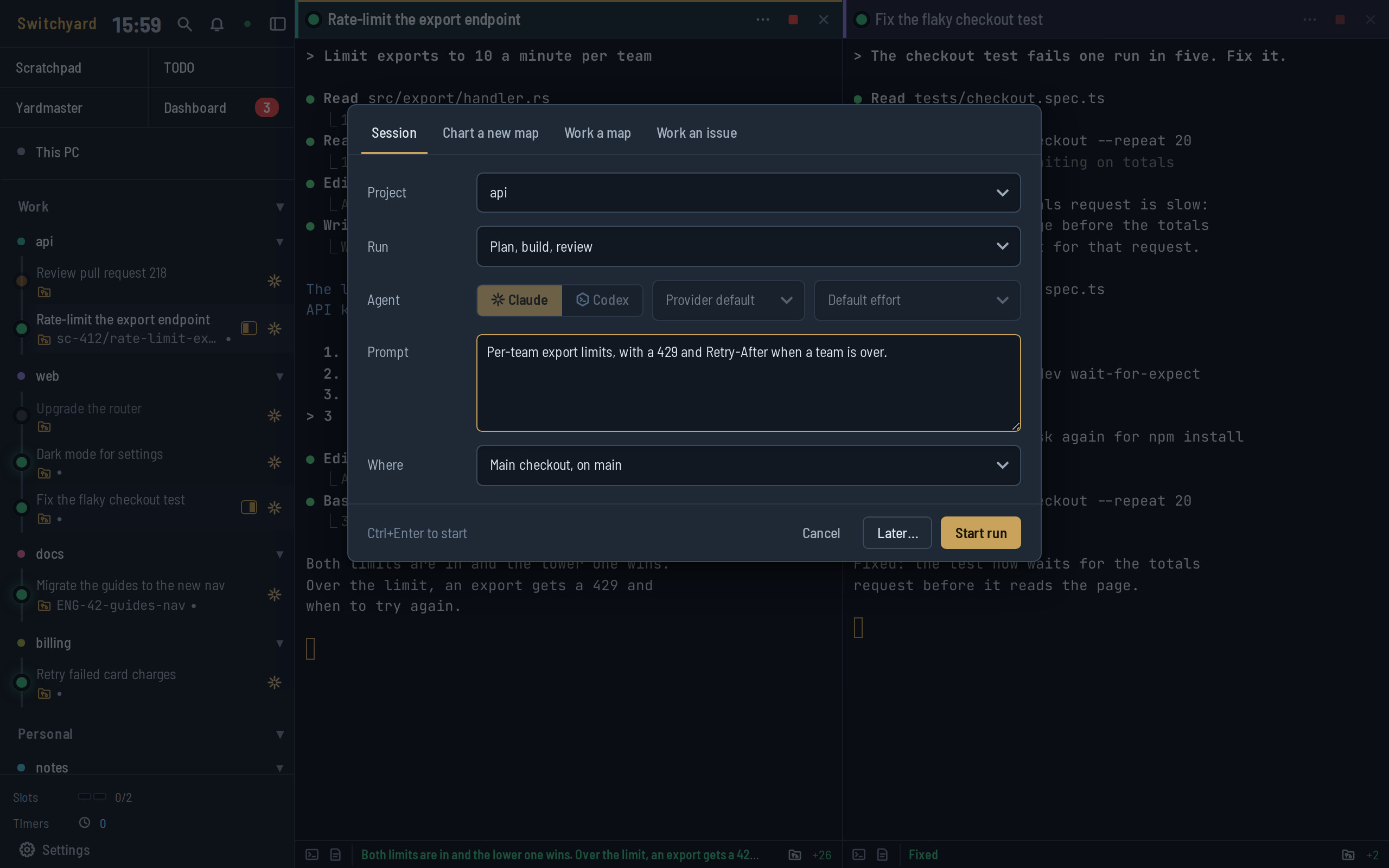
A keystroke to start, a dialog when you want one
Ctrl N starts a session straight away with the project's defaults. Hold Shift and you get the choices.
- Agent, model and effort, for this one session, whatever the project usually uses.
- Where it runs. A new worktree on a branch of its own, or the main checkout. The button says which before you press it.
- A run, if the task deserves one. Pick a recipe or a playbook and the session becomes its first step.
- Later. Set it to start at a time, or when your usage resets.
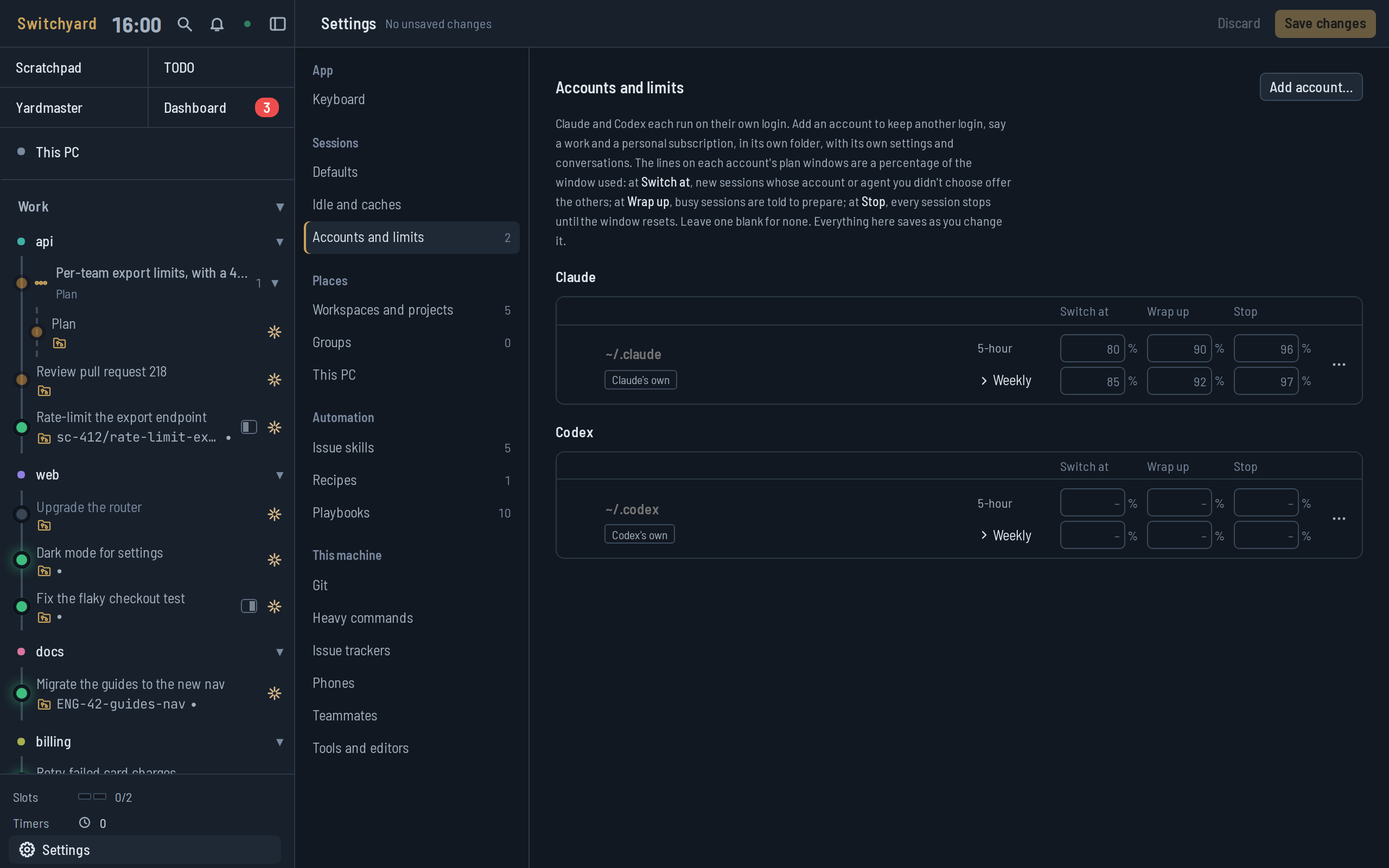
Plans have limits. Set your own lines.
Switchyard reads each account's five-hour and weekly usage, and lets you say what happens as it fills.
- Switch. Before a new session starts, offer your other account or the other agent.
- Wrap up. Each busy session gets one message to stop safely and write a handover.
- Stop. Every live session on that account is stopped, and stays resumable.
- Several accounts per agent, work and personal say, kept apart. Switchyard never writes or stores a credential.
A warm cache is a tenth of the price
A reply to a session whose prompt cache has lapsed pays to write the whole context again. Each Claude session shows whether its cache is warm, cooling or cold, and a cold one with a long context says what the next reply will cost. Keep warm holds a session's cache for an hour, two, or until you reply, without adding anything to the conversation.
Keyboard
Every shortcut can be rebound in Settings. On macOS, read ⌘ for Ctrl where the Mac has its own convention.
Then give the work somewhere to go.
A session's change is only useful once it's reviewed and merged. That's the next page.