 Switchyard
The yes an agent is waiting for, from your pocket.
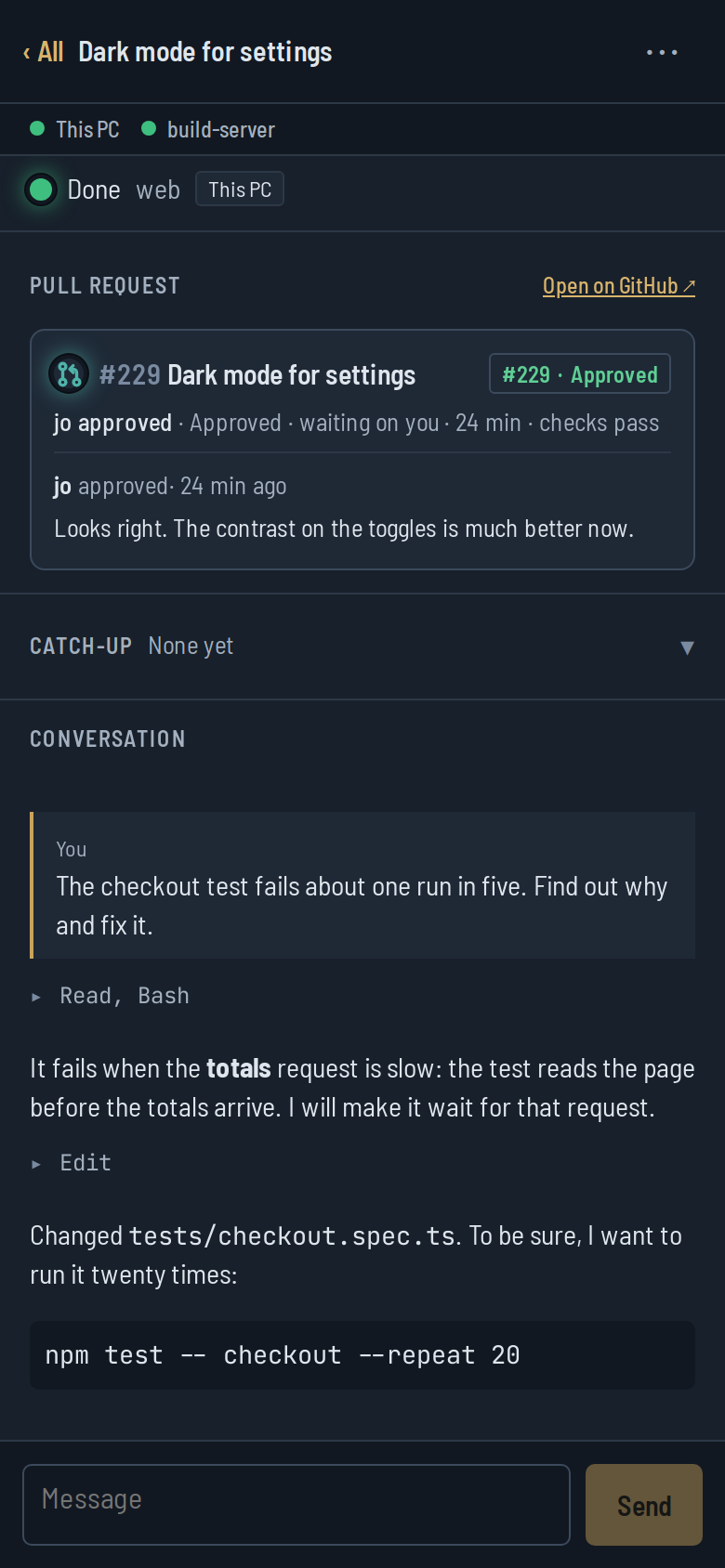
A session that waits an hour for a permission is an hour lost. The phone view shows which sessions need you, tells you what each has been doing, and takes your answer.
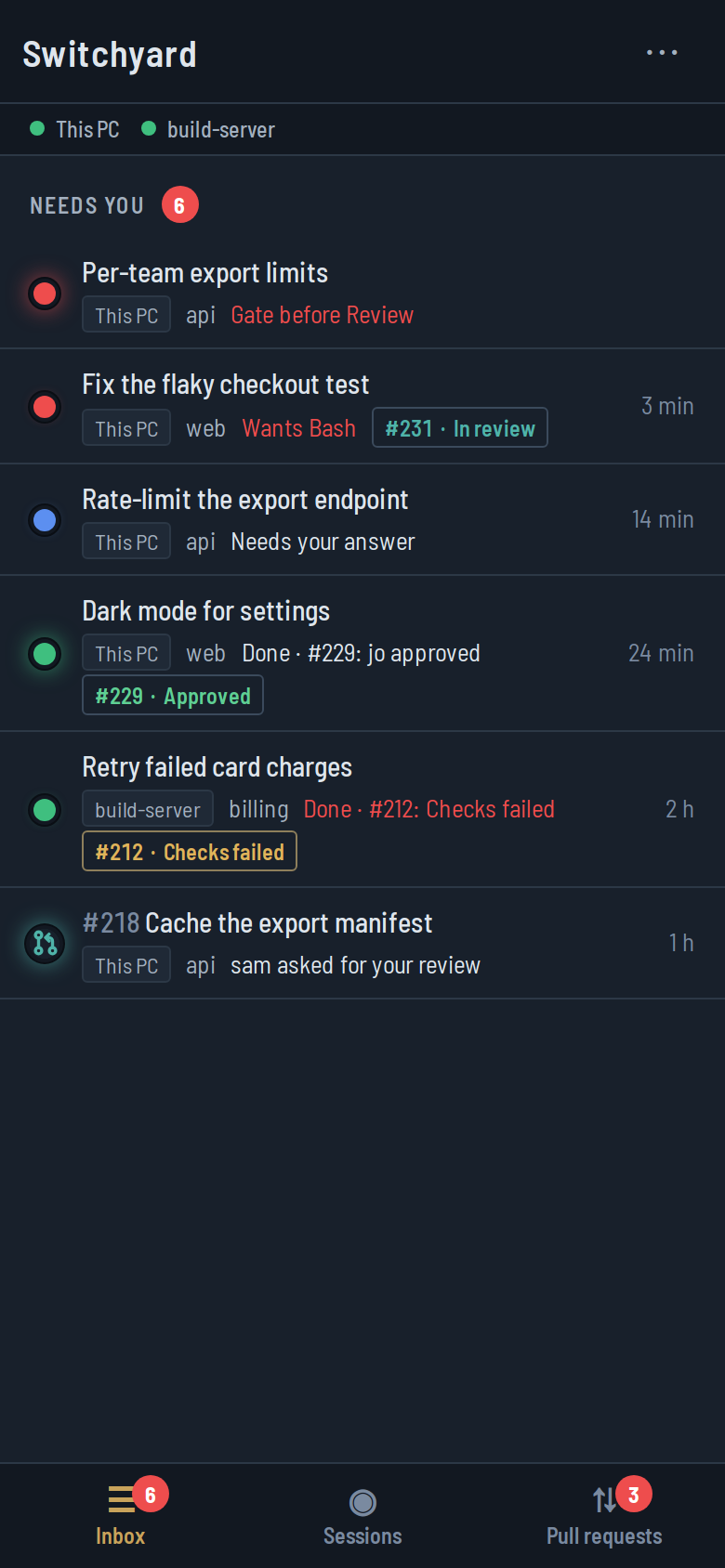
Made for checking in, not for working
It's a window onto your daemons, with screens made for a phone and not the desktop's shrunk down. It does less than the app on purpose.
What needs you, first
Sessions waiting on a permission or a question, runs stopped at a gate, and sign-offs, across every computer you've paired.
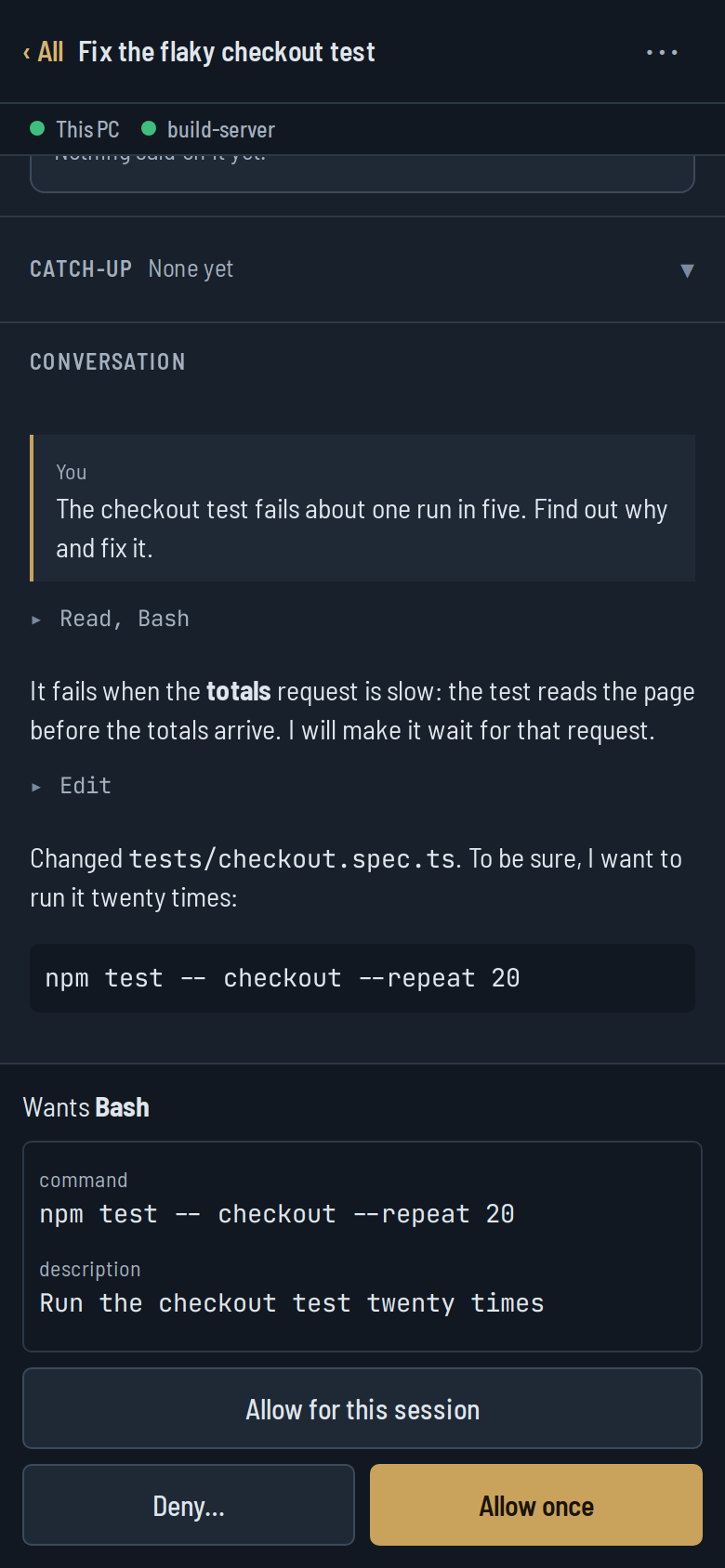
A catch-up
A few lines on where a session stands, so you can answer without reading its scrollback. The conversation is there as chat if you want it.
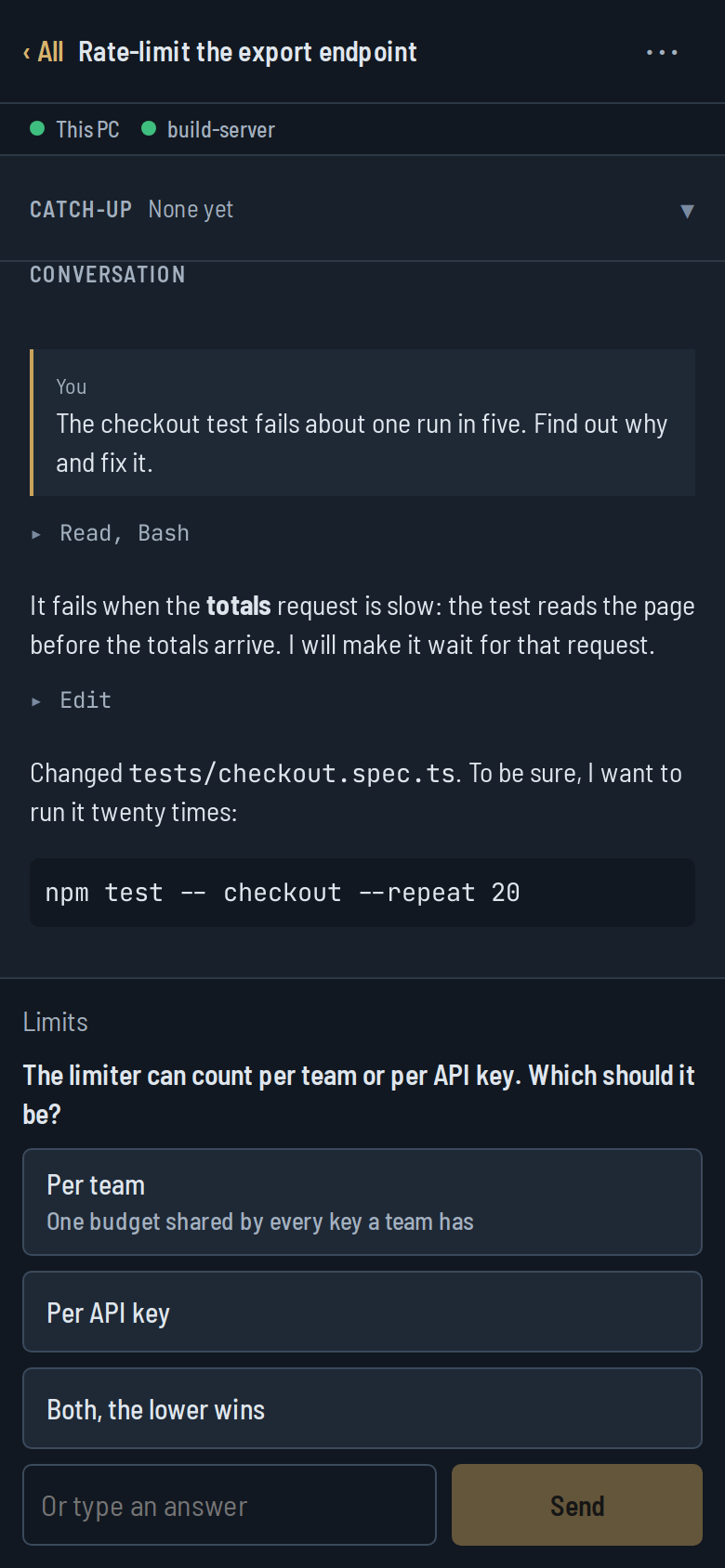
Answer
Allow once, Allow for this session or Deny. Pick an answer to a question, or send a message. Whichever of you answers first, phone or desk, wins.
Gates and sign-offs
Approve or decline a run's gate, sign off a handoff, or ask for changes.
Stop, finish, resume
Put a session away or bring a stopped one back.
Your pull requests
The ones you opened and the ones waiting on your review, with where each stands.
Paired by a QR code
There's no account to make and no VPN to set up. It's a web page you add to your Home Screen, so there's no app store either.
Show the code
In Settings, under Phones, choose Pair a phone…. The code works once, for five minutes.
Scan it
Your camera opens the phone view. Add it to your Home Screen and open it from there.
Allow notifications
Or don't. The view works without them, and you can turn them on later.
How it reaches your computer
End to end
The phone connects to your daemon directly and encrypted. A relay passes the traffic along and sees only ciphertext.
The phone's key is its only credential
Each pairing makes a fresh key on the phone. There's no password to leak and nothing of yours on a server.
Pushes say little
A notification carries the host, the project, the session's name and what it needs. Never the prompt, the code or a token.
Sent by your own computer
Each daemon sends its own pushes through your phone vendor's push service, whether or not the desktop app is open.
A lost phone
Unpair it on the desktop. Its key is dropped and its connections close at once.
Your own relay, if you like
The public relays are the default and come with no uptime promise. You can name your own.
What stays at the desk
Starting and deleting sessions, the terminal itself, switching models and accounts, crews, timers, slots, the file view and settings. A sandbox's request for more access is answered at the desk too: widening what an agent can reach shouldn't be a tap on a lock screen.
This is new. The phone view has had little use on real phones so far. iOS needs it added to the Home Screen before it can notify you.
Pair your phone in a minute.
Install Switchyard on your computer first. The phone view needs nothing else.